Scanway for clinics
Follow our step-by-step instructions, and you’ll be up and scanning in just a few minutes.
Before you begin, make sure you have your welcome e-mail with your access code (password) ready.
Getting started
In your welcome e-mail, you’ll find the link to my.scanway.eu along with your login password.
1. Log in
Go to my.scanway.eu and log in using the password provided. As a tip it is a good idea to save the clinic password in your Patient management system, i.e. in a dummy patient record. In this was the long password is easy to copy when installing the app.
2. Download the app
Once logged in, scroll to the bottom of your dashboard. Here you’ll find the download link for the ScanWay application.
3. Install the app
After downloading, open the installer and follow the steps.
4. Enter your license key
During installation, you’ll be asked for a license.
- Go to the Licenses section in my.scanway.eu.
- Choose one of the unused licenses.
- Copy and paste the license key into the field in the installer and continue.
5. Repeat for each PC
Repeat this process on every computer in the clinic that needs access, using one license per PC.

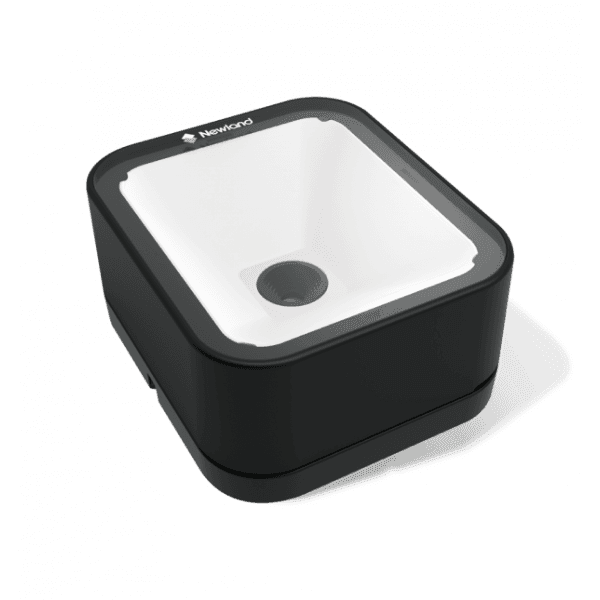
Connect the scanner
...by completing all the following steps:
- Insert the scanner into the COM port (use a USB-C adapter if needed).
- Right-click the Scanway icon in the bottom-right corner.
- Click “Reconfigure Scanner”.
- Click Continue in the pop-up window.
- Scan any barcode or QR code (the product will not be consumed).
You’re ready to go.
If scanner is not configured
1. Connect the scanner
Plug the scanner into your PC using the included USB cable. If your scanner was preconfigured from Scanway, skip step 2.
2. Scan the configuration barcodes
Scan the barcodes provided below this section one by one, starting from the top and working your way down.
- Be sure to scan each barcode only once, in the correct order.
- If you’re unsure whether you scanned correctly, simply start over from the top — it’s safe to re-scan them
Reconnect scanner
If you need to connect to your scanner, right-click on the Scanway icon in the system tray and select Reconfigure scanner...

Scanner busy
In case you see this, close all other apps since one may occupy the scanner. Press retry.

Scanner is connected
You see a green status of the scanner. Please scan any product to complete.
