Scanway for Suppliers
Here you can setup your supplier app and stock scanner
Welcome to Scanway for suppliers
In your welcome e-mail, you’ll find the link to my.scanway.eu along with your login password.
1. Log in
Go to my.scanway.eu and log in using the password provided.
2. Download the app
from the link in our welcome e-mail
3. Install the app
After downloading, open the installer and follow the steps.
4. Enter your token
During installation, you’ll be asked for a token.
- Copy and paste the token into the field in the installer and continue.
5. Repeat for each PC
Repeat this process on every computer needed.

Setting up the Scanner
1. Connect the scanner
If you recived the scanner from Scanway its already configured and you can skip to Connecting the scanner.
Plug the scanner into your PC using the included USB cable. If you got the scanner from Scanway the scanner is already configured and you can skip step 2.
2. Scan the configuration barcodes
Scan the barcodes provided below this section one by one, starting from the top and working your way down.
- Be sure to scan each barcode only once, in the correct order.
- If you’re unsure whether you scanned correctly, simply start over from the top — it’s safe to re-scan them.
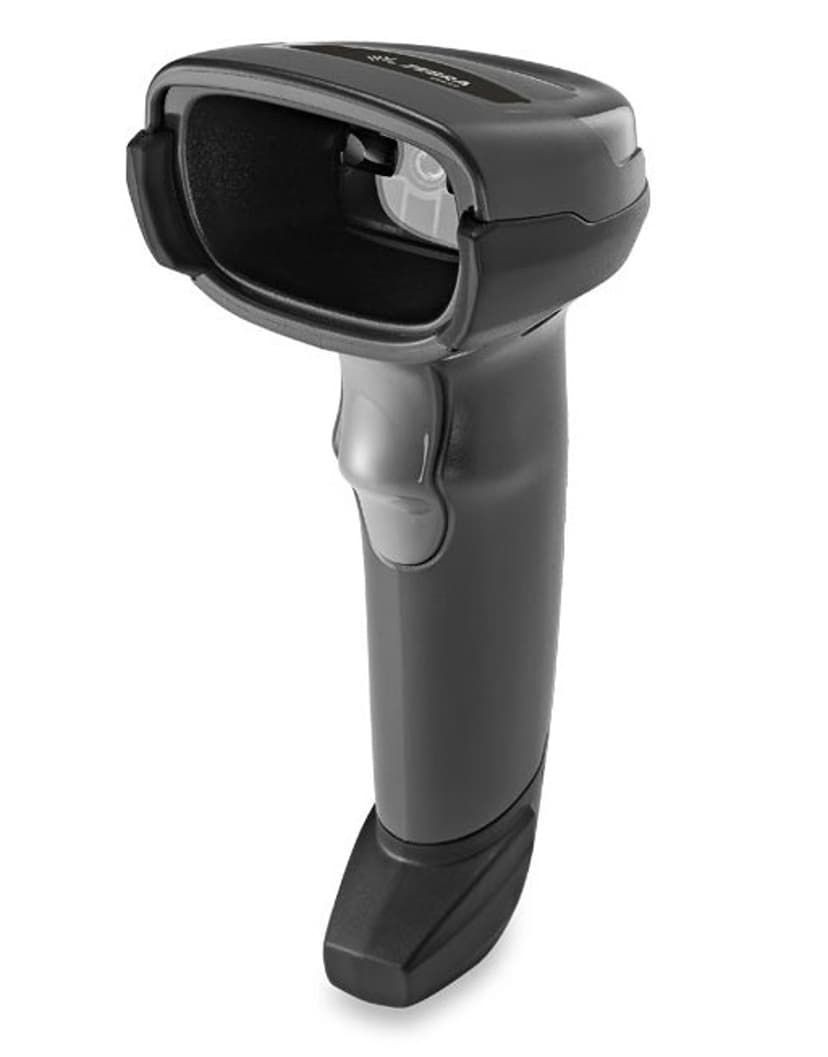
Conneting the scanner
1. Open the ScanWay Supplier app
- In the middle top section, select setup.
2. Attach the scanner to the PC
- Click Continue in the lower left corner
- If the scan shows up correctly in the software, the connection is successful.
4. Troubleshooting
- If scanner is not recognised, set it up again using the instructions above.
- Scanway requires that Windows is fully updated. Check for Windows updates and reboot the pc after update.
